|
|

 |
|
Thai <> English Dictionary
Thai <> English Dictionary
for Android phones/tablets
|
|
|
for Android phones/tablets
|
Frequently Asked Questions (FAQ)
Features Questions:
Phrasebook vs. Dictionary Questions:
Requirements/Compatibility Questions:
Purchase Questions:
Reinstall, Upgrade, Transfer Questions:
Keyboard Questions:
Using the App Questions:
Reference Questions:
Companion Material Questions:
Features Questions and Answers:
|
Q:
|
Wow! How do I use this?
|
|
A:
|
 This Thai <> English Dictionary
is an app that runs on mobile devices using the Google Android operating system, including both smartphones and tablets.
This Thai <> English Dictionary
is an app that runs on mobile devices using the Google Android operating system, including both smartphones and tablets.
This dictionary is also available for
To use the dictionary, you simply run it and start typing
letters of the word or phrase you are looking for. As you enter each
letter, the dictionary jumps closer and closer to your
desired word or phrase, and typically after only a few letters, you
have found your word or phrase.
You can also find phrases arranged
into more than 300
useful categories.
Each entry contains English, Thai written using
Thai Script, and Thai written using a convenient
English-like Thai Sound
pronunciation guide.
So you can read and search for Thai words even
if you don't read Thai Script.
We have lots more information about the dictionary on our
overview page. Also see the exact
requirements for
your device.
Return to Top
|
| |
|
Q:
|
Can I look up both English and Thai words?
|
|
A:
|
Yes. Most dictionaries and phrasebooks let you look up English words,
and some also let you look up Thai words using
Thai script. But Paiboon's revolutionary three-way design
bridges the gap for English speakers by introducing a third method
where you can look up Thai words that you hear by their
sound, using an easy-to-read, English-like Thai Sound
pronunciation guide:
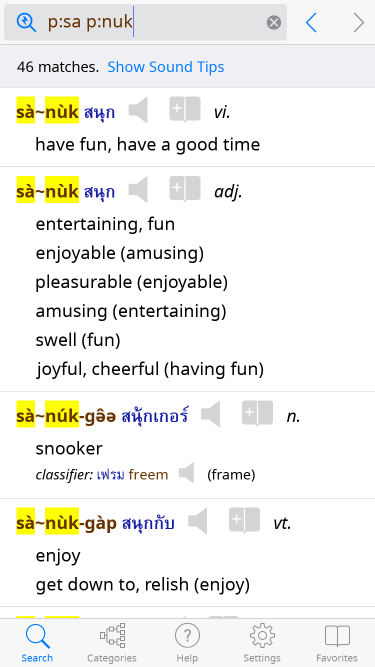
Search-by-Sound™ has been a hallmark of all Paiboon dictionaries
since 2002.
For more information on Search-by-Sound™ and why it's so useful for
Thai, see this section.
Return to Top
|
| |
|
Q:
|
Will I see actual Thai characters?
|
|
Q:
|
Will I see actual Thai script?
|
|
Q:
|
Will I see the Thai alphabet?
|
|
A:
|
Yes you will. Our dictionary comes with highly readable
Thai fonts and allows you to set the font size as big as
you want. You don't need any extra software to display Thai Script
or even to search for Thai words. We provide a handy
on-screen keyboard to help
you type Thai words by their sound, or you can use your
favorite third-party keyboard.
If you don't read Thai script, our dictionary
is still just as useful! Every time a Thai word
appears, it's written in Thai Script, but also in an
easy-to-use, English-like Thai Sound pronunciation
guide, so you can read and sound out Thai words without
needing to read Thai script. And thanks to our
indispensable
Search-by-Sound™
feature, you can even find Thai words by their
sound!.
Return to Top
|
| |
|
Q:
|
Do I have to read Thai script to use this app?
|
|
A:
|
No. Our dictionary is equally useful to casual travelers who
don't read Thai and serious students who do, because every
time a Thai word appears, it is written both in
Thai Script and in an easy-to-use, English-like Thai Sound
pronunciation guide. So you can read and sound out Thai
words without needing to read Thai script. And thanks to
our indispensable
Search-by-Sound™
feature, you can even find Thai words by their sound!
Return to Top
|
| |
|
Q:
|
Do I have to be on the Internet to use the app?
|
|
A:
|
No. When you purchase our app and download it from the app store, you
have everything you need right on your device. All the dictionary
entries and sounds are built-in, so you can look up words and play all
the high-quality
sound recordings
of each Thai word without being connected to
the internet or incurring any data charges. Works on a plane or on
the train.
Only the dictation feature requires internet access, and only
on some platforms: see
dictation requirements.
Return to Top
|
| |
|
Q:
|
Does the dictionary talk?
|
|
A:
|
Yes. You can tap on any Thai word, phrase, or
complete sentence in the dictionary to hear a high-quality sound
recording of a native Thai speaker.
Tap the
 buttons to hear some sample sounds:
Say goodbye to robot voices and limited sound sets: our comprehensive
sounds set a new standard in the industry.
Return to Top
|
| |
|
Q:
|
Can I speak to the dictionary?
|
|
A:
|
Yes.
When online, you
or your Thai friend
can speak English
or Thai
words right into the app to search the
dictionary
(see dictation requirements).
Return to Top
|
| |
|
Q:
|
Can I translate whole sentences or paragraphs at once?
|
|
Q:
|
Can I translate web pages automatically?
|
|
A:
|
No. At this time, our app contains
195,000+
words, phrases, and complete sentences, but it does not attempt to
translate complete sentences (that are not already in the
dictionary), paragraphs or whole webpages.
Currently, for translating sentences or paragraphs from Thai to
English or English to Thai, the only tool available is Google
Translate, but as many people have noticed, it's really not so good.
The output is so full of errors that it is often impossible to
understand, or easy to misunderstand. Translation of complete
sentences is a very difficult problem because the computer has to
understand the text in order to choose the right translation
(e.g. "glass" pane vs. drinking "glass") and in all but a few
isolated subject areas, that is beyond the ability of modern software.
Other language pairs, such as English-Spanish Google Translate,
work much better than English-Thai because in those more
closely related languages, multiple meanings tend to be shared
across the two languages more often. So Google Translate's
guesses are correct a much greater percentage of the time.
Having said that, we are thinking of implementing a feature where you
can paste a bunch of text, or perhaps specify a website URL, and our
app will find and show all the words in your text that are in
our dictionary, with an easy way to see the definitions. Contact us if this
interests you.
Return to Top
|
| |
|
Q:
|
Can I have a look at the product's manual?
|
|
A:
|
You can find a detailed explanation of all app features on our
overview page.
Our product manual, which includes both detailed instructions on using
every app feature and a comprehensive
guide to speaking and understanding Thai, is built into
the program. It's even interactive, with icons you can tap to hear
sounds.
You can buy the product with full confidence knowing we offer a 100%
money-back guarantee.
If you have a specific feature question, you can
contact us and ask.
Return to Top
|
| |
Phrasebook vs. Dictionary Questions and Answers:
|
Q:
|
How can I decide whether to buy phrasebook or the dictionary?
|
|
Q:
|
How are the phrasebook and dictionary different?
|
|
Q:
|
Are all features of the phrasebook also in the dictionary?
|
|
Q:
|
Can I upgrade from phrasebook to dictionary?
|
|
Q:
|
Can I add phrasebook features to my dictionary?
|
|
A:
|
All these questions are answered on our
Thai phrasebook and dictionary app product comparison page.
Return to Top
|
| |
Requirements/Compatibility Questions and Answers:
|
Q:
|
What kind of device or computer do I need?
|
|
Q:
|
What kind of operating system (e.g. iOS, Android, Windows) do I need?
|
|
Q:
|
What platforms does this run on?
|
|
A:
|
This Thai <> English Dictionary is an app that runs on
mobile devices using the Google Android operating system, including both smartphones and tablets.
For all the important details on requirements, see the
requirements page.
This dictionary is also available for
Return to Top
|
| |
|
Q:
|
How much space do I need on my device or computer?
|
|
A:
|
Because our app includes
almost 30 hours
of high-quality sound recordings, we require about
593 megabytes (593MB, or 0.593GB) of free space on your device or computer.
For more details, see our
requirements page.
Return to Top
|
| |
|
Q:
|
Can I move the app to the SD card?
|
|
A:
|
We do not advise that you move the small
(22 megabyte (22MB, or 0.022GB))
core of our app from your internal storage (where it will install by
default) to your SD card.
The core of the app must reside on your internal storage due to a
limitation of the Android operating system: any app that has its own
keyboard (as we have the Paiboon Keyboard) must be stored in internal
storage, otherwise the keyboard becomes un-selected each time you
reboot your device. This de-selection is very inconvenient because it
means you must re-enable the keyboard each time you reboot.
However, the issue is moot for most users since the core of our app is
so tiny (22 megabytes (22MB, or 0.022GB)). Our app automatically stores
the big data file of dictonary definitions and sounds on your SD card
in every case.
For more info on where the data is stored, see the
requirements page.
Return to Top
|
| |
|
Q:
|
Does this work on iOS?
|
|
Q:
|
Will this run on my iPhone, iPad, or iPod Touch?
|
|
A:
|
Yes. See our overview page
for purchase info and also see
requirements for
your device/computer.
Return to Top
|
| |
|
Q:
|
Does this work on Android?
|
|
Q:
|
Will this run on my Android phone or tablet?
|
|
A:
|
Yes. See our overview page
for purchase info and also see
requirements for
your device/computer.
Return to Top
|
| |
|
Q:
|
Does this work on Windows?
|
|
Q:
|
Will this run on my Windows laptop or desktop PC?
|
|
A:
|
Yes. See our overview page
for purchase info and also see
requirements for
your device/computer.
Return to Top
|
| |
|
Q:
|
Will this run on my Mac?
|
|
A:
|
We do not plan to develop a Mac version of this dictionary app
at this time.
However, we have many customers who use our Windows product on a Mac via
CrossOver Mac,
Parallels and
VMWare Fusion.
See our
overview
page for more info on the Windows product.
Return to Top
|
| |
|
Q:
|
Will the dictionary run on Windows Phone?
|
|
Q:
|
Will the dictionary run on PocketPC / Windows CE / Windows Mobile?
|
|
A:
|
No. This Thai <> English Dictionary is an app that runs on mobile devices using the Google Android operating system, including both smartphones and tablets.
This dictionary is also available for
We have heard there might be demand for a PocketPC/Windows
Mobile/Windows Phone port. If you are interested, send us mail at windowsphone@word-in-the-hand.com.
Return to Top
|
| |
|
Q:
|
Will the dictionary run on the Amazon Kindle Fire?
|
|
Q:
|
Can I download the dictionary from the Amazon Appstore?
|
|
A:
|
The first release of our Talking Thai <> English dictionary for
Android will mostly run on the Kindle Fire, but Amazon has
unfortunately decided to create two major issues:
- For no rational reason, Amazon went out of their way to specially
cripple their own version of Android so that it will not support any
third-party keyboards (that is, keyboards other than the one keyboard
that Amazon provides). Note that this is a special quirk of the
crippled version of Android that Amazon ships on their devices and it
is beyond our control. Our dictionary app comes with a handy Paiboon
Keyboard which lets you type in Thai and also type the special
English-like symbols needed for pronunciation guides while in our
application. Amazon's senseless modification prevents the Paiboon
Keyboard from working. So, you can type in English with no problem,
but if you want to type in Thai, you will need to find some other
solution for the Kindle Fire. You may need to "root" your device, as
many Kindle Fire users have done, in order to work around the
inexplicable limitations placed on the device by Amazon. If you are a
Kindle Fire user, we urge you to take all means possible to contact
Amazon and demand that Amazon update their software and restore to you
this basic right, enjoyed by all Android users on all platforms except
the Kindle Fire. Tell them you want to use a bilingual dictionary app
that uses a custom Android Soft Keyboard (also known as an IME), but
Amazon has inexplicably disabled this feature. Our guess is that
Amazon disabled third-party keyboards so they could "control"
distribution of Kindle Fires in non-English-speaking markets. If we
can make Amazon realize that bilingual dictionaries and other apps
require custom keyboards even in the US/European market, Amazon may
relent.
- A second issue which arises on the Kindle Fire is that Amazon does
not ship the device with the Google Play Store app, which is by a vast
margin the largest paid app store on the Android platform. Instead,
Amazon ships its own Amazon Appstore app, so that Amazon may usurp all
profits while sticking you with an extremely limited selection of
apps. At this time, our dictionary app is only available on Google
Play. We intend to list ourselves on the Amazon Appstore in the
future, but we have not done so yet (in part because of the keyboard
problem). Despite this further obstacle created by Amazon, many
Kindle Fire users have found ways to modify their devices (possibly
involving "rooting") so they can install Google Play Store and get
access to the hundreds of thousands of apps available on Google's
flagship app store. We highly recommend that you check on the
internet to see what options are available to you.
Here is an excellent website which describes the process of liberating
your Fire from the greedy clutches of Amazon and enabling third-party
keyboards such as our Paiboon keyboard:
Use a third party keyboard with a (rooted) Amazon Kindle Fire
Return to Top
|
| |
|
Q:
|
Will the dictionary run on Sony-Ericsson devices?
|
|
Q:
|
Why do dictionary definitions shift left and right on Sony-Ericsson devices?
|
|
A:
|
The dictionary does run with full features, but we have discovered
that Sony made certain non-standard modifications to Android Version
2.3.x that cause some minor display issues with our app. In
particular, after you tap some part of a dictionary entry (such
as a translation or speaker icon), you may see that dictionary entry
shift to the left or right a few letters. This symptom is similar in
appearance to the Android Version 3.X problem described in the next
item below, but the underlying cause is different: it is due to
Sony-specific modifications to Android.
Although we cannot completely work around the Sony defect, we did
introduce a special new switch in version 1.7 of our Android app for
Sony users: touch your device's Menu button, touch "Settings," and
scroll down and uncheck "Indentation." This will disable indentation
of each entry, and this should also make the Sony display problem go
away so that you can use your dictionary normally.
Return to Top
|
| |
|
Q:
|
Will the dictionary run on Samsung devices with Android 2.2.1?
|
|
Q:
|
Why does my dictionary give license errors on my Samsung with Android 2.2.1?
|
|
A:
|
Summary: there is a nasty Samsung Android 2.2.1 bug that, in rare
cases, may cause our dictionary to be unable to permanently save its
settings across device reboots, or give you license errors when you
use our dictionary when not connected to the internet. Until Samsung
releases a new Android version to fix the bug for real, there is a way
to restore full ThaiDict functionality, as detailed below.
We have gotten word of a bug that Samsung introduced in their custom
2.2.1 firmware for devices such as the Galaxy S (and other Samsung
devices) which may cause our application to be unable to remember its
Settings, or may also cause our application to fail to retain its
license for the normal offline period (normally you can be off the
internet for 15+ days plus a multi-day grace period and still use the
dictionary, before you need to be online to confirm your license, as
explained here).
This bug comes from Samsung and is beyond our control, and it may
affect any app on your device (not just ThaiDict). Specifically, it
may cause any app on your device to be unable to save application
preferences that persist across reboots of your device. Thousands of
Samsung users are clamoring for an Android update but as of February
2012, Samsung has not yet released one.
This Samsung bug does not affect all apps, and it may not affect a
given app (like, say, ThaiDict) in all cases. In fact, the only time
you will see this Samsung bug is in the following scenario: say you
install an app A, then you remove app A, then you install or remove
one or more other apps, and then you install app A again. In this
scenario, app A is likely to experience problems saving its settings.
If app A happens to be our ThaiDict, you will see that you cannot save
settings across reboot and you will also experience license failures
if you run the app when not connected to the internet.
The problem is that when you uninstall any app, Samsung's buggy
Android 2.2.1 fails to clean up all of that app's settings files. It
leaves behind an orphaned settings folder, which for our dictionary is
called
/dbdata/databases/com.wordinthehand.thaidict (by
the way, /dbdata is a Samsung-specific concept that Samsung invented
for their devices and is not a standard part of Google's Android).
Then, if you later re-install the same app, the app cannot create new
settings (because it cannot read, write, or delete the old orphaned
folder), nor can it access the settings from the previous
installation.
Simply uninstalling and reinstalling ThaiDict will not solve the
problem, because the bug is in Samsung's uninstallation code.
The solution is to remove or rename the old, crufty settings folder
before re-installing the app.
If your device happens to be rooted, this is easy. Download and run
one of the many, free file explorer apps, such as Droid Explorer or
ASTRO, navigate to
/dbdata/databases/com.wordinthehand.thaidict (note
that your file explorer app must be running as root otherwise /dbdata
will appear to be empty), and rename the folder to anything else (say
com.xxx.xxx). Then you can install ThaiDict and use as normal.
If your device is not rooted, then unfortunately the only way to
delete the old, crufty settings folder is to do a factory reset of
your phone. The factory reset will completely wipe all apps and data
on your phone and restore it to its original condition. If you do
this you will not lose any purchases you made on the Google Play
Store, but you will have to re-download all your apps and set them up
again, as well as restoring any music or other data you put on your
phone.
We hope Samsung will fix their bug for real. Perhaps they will offer
and Android 4.X update for your device that fixes the problem.
Return to Top
|
| |
|
Q:
|
Why are entries sometimes cut off on Android 3.X devices?
|
|
Q:
|
Why do entries sometimes shift to the left or right on Android 3.X devices?
|
|
A:
|
In Android Version 3.X (aka Honeycomb), which Google released in early
2011 and which only runs on certain tablet devices, Google introduced
a display
bug which sometimes causes our dictionary entries to be incorrectly
wrapped from line to line, and occasionally even display wider than
the screen, so that to see the whole entry you need to actually
touch on part of the definition that is not a hotlink and drag your
finger left or right to see the whole entry. You will find that this
problem is intermittent: you might see it for an entry, then go to
another screen and come back to the same entry, and the problem
will be gone.
This problem looks nearly identical to a similar problem on
Sony-Ericsson devices running Android 3.3.x, but that problem turns
out to have a different cause and solution, as explained above.
Unfortunately, due to the internal nature of the Android 3.X bug, we
are not able to fix the bug for you on 3.X devices. It is too deep
inside Google's operating system.
Fortunately, we have gotten word that Google has fixed the bug in
Android Version 4.X, and we understand that many current 3.X device
vendors will allow upgrade to 4.X. So if you are experiencing
this problem, contact your device manufacturer to see if you can
upgrade to 4.X.
Return to Top
|
| |
Purchase Questions and Answers:
|
Q:
|
How can I purchase the dictionary for my Android phone or tablet?
|
|
A:
|
Simply tap/click here to purchase and install:
You can do it right on your device, or you can do it on your PC/Mac:
- Tapping the badge on your device takes you to our app in the
Google Play Store. Your device will need to be connected to the
internet during purchase and download. Depending on your location and
carrier, you might want or need to be connected via WiFi rather than
3G/4G mobile networks, because the download is
593 megabytes (593MB, or 0.593GB) in size. For example, you could install
from your home, an internet cafe, a restaurant, a coffee shop, or any
other location that offers Wi-Fi.
- Clicking the badge on your PC/Mac takes you to our app on the
Google Play Store website. Once you have made the purchase on your
PC/Mac, the app will automatically begin downloading on all your
Android devices (all devices that use the same Google Account that you
use on your PC/Mac).
If you want to tell a friend about our app or install the app when you
are not reading this FAQ, simply search the Google Play Store for the
word "Paiboon." You will find the app as:
Thai <> English Dictionary
from Paiboon Publishing and Word in the Hand.
Return to Top
|
| |
|
Q:
|
What if my Android device doesn't come with Google's "Play Store" app?
|
|
Q:
|
Do you sell an APK by download?
|
|
A:
|
At this time, we only sell our app through the Google Play Store.
We are considering listing our app in smaller stores and/or offering
APK download.
If your device did not come with Google's Play Store (which typically
shows up on your device's home screen as "Play Store" with a shopping
bag icon), in most cases it is possible for you to install Play Store
onto your device. Do some Google searches for: "install Google Play
Store on [your device model here]." However, this process may require
you to "root" your device, so you might want to seek out a smartphone
specialist who knows how to do the installation.
Be aware that certain Android devices, particularly the extreme
low-end devices, ship with a look-alike app with the same name
(sometimes also called "Market") that is not Google's Play Store.
When you search for "Paiboon" you will not find our app in these
look-alike (typically China-based) app markets. On such devices it is
still generally possible to install the real Google Play Store.
Return to Top
|
| |
|
Q:
|
Can I buy the Android app using PayPal?
|
|
A:
|
Currently the Google Play Store does not allow purchases using PayPal,
probably becuse it is based on Google's competing Google Wallet
system. Sorry for the inconvenience. In the future we are
considering separate .apk sales, which we would be able to offer
through PayPal.
Return to Top
|
| |
|
Q:
|
Can I try the dictionary before I buy?
|
|
A:
|
For all of our products on all platforms, we offer a 100%
money-back guarantee,
so you can buy the product with full confidence.
See our support page
to find out how the guarantee works on each platform.
Return to Top
|
| |
|
Q:
|
What is the return policy?
|
|
Q:
|
Is there a money-back guarantee?
|
|
A:
|
For all of our products on all platforms, we offer a 100%
money-back guarantee,
so you can buy the product with full confidence.
See our support page
to find out how the guarantee works on each platform.
Return to Top
|
| |
|
Q:
|
What about Google Play's 15-minute return policy?
|
|
A:
|
Buy with confidence knowing we offer a
real money-back guarantee,
not Google's 15 minute nonsense.
The Google Play Store has a policy that you can return any app within
a 15-minute period after purchase. We believe this policy is utterly
absurd, since 15 minutes is not enough time to evaluate any app, and
in the specific case of our app, you will almost always need more than
15 minutes to complete the one-time download of dictionary definitions
and sounds that happens when you run the app for the first time.
Therefore, after taking a reasonable amount of time to evaulate the
app on your device, if it does not function as advertised, we will be
more than happy to issue you a refund.
Buy with confidence knowing you can fully explore the app before you decide.
For all the details of our guarantee,
see our support page.
Return to Top
|
| |
Reinstall, Upgrade, Transfer Questions and Answers:
|
Q:
|
Do I get free lifetime upgrades to later versions on the same platform?
|
|
Q:
|
If I bought on iOS, do I get free upgrades to later iOS versions?
|
|
Q:
|
If I bought on Android, do I get free upgrades to later Android versions?
|
|
Q:
|
If I bought on Windows, do I get free upgrades to later Windows versions?
|
|
A:
|
Yes! We are constantly improving the dictionary by adding new
features and adding more vocabulary. By purchasing the dictionary
now, you will be entitled to download free upgrades on the same
platform (e.g. Apple iOS, Google Android, Microsoft Windows) as new
features and vocabulary become available.
Each platform is sold separately, so
upgrades do not apply across platforms.
Return to Top
|
| |
|
Q:
|
Is one purchase good for multiple devices/computers?
|
|
A:
|
If you purchased for Google Android (smartphone or tablet):
Yes! The standard policy of the Google Play Store is that once you
purchase our app, you can install it on any number of Android devices
so long as those devices are all set to to the same primary Google
account that you used when you purchased our app.
You can find your device's current primary Google account by running
the Google Settings app in your device's home screen, then going to
"Accounts" (it sometimes shows as "Accounts & Sync").
Your purchase of the Android product does not entitle you to use the
app on other platforms (e.g. iOS, Windows). The other platforms are
sold separately. See this FAQ item.
Return to Top
|
| |
|
Q:
|
How do I install the app on additional devices/computers?
|
|
A:
|
If you purchased for Google Android (smartphone or tablet):
With one purchase, you can install our app on multiple Android devices
free of charge, provided each device is set to to the same primary
Google account that you used when you first purchased our app. The
Google account is set in Google's "Settings" app under "Accounts and
Sync."
To install the app on additional Android devices, go to the Google
"Play Store" app and follow the same steps you took to find the app
during your initial purchase. You will find that the button that used
to say "Purchase" now says "Install." Touch that button and the free app
installation will begin.
Another way to do it is to launch Google's "Play Store" app on the
device, touch your device's menu button and choose "My Apps." You
will see our dictionary in the list and you will be able to touch it
to begin the installation.
Your purchase of the Android product does not entitle you to use the
app on other platforms (e.g. iOS, Windows). The other platforms are
sold separately. See this FAQ item.
Return to Top
|
| |
|
Q:
|
Do I get free lifetime upgrades to other platforms?
|
|
Q:
|
Can I get a discount for upgrades to other platforms?
|
|
Q:
|
Can I trade in my older version on another platform for this platform?
|
|
A:
|
No. When your purchase our product on one platform (e.g. Apple iOS,
Google Android, Microsoft Windows), you get free lifetime upgrades on
that platform but you must purchase again if you change platforms.
Currently there is no way to transfer a purchase or get a discount for
a new purchase across platforms.
One reason why we cannot do transfers or discounts is that Apple,
Google, and PayPal are mortal enemies and they don't give us any way
to transfer the licensing permission. Apple and Google also do not
give us any way to offer discounts for individual customer
purchases.
But there is another, more fundamental reason why we do not offer free
license transfers or discounts: each time we have moved to a new
platform (from Palm OS to Windows desktop to Apple iOS to Google
Android) we had to completely re-write the app from scratch, because
each platform uses a software development system that is completely
incompatible with the previous platform. In some cases, we even had
to rewrite our app in a completely different computer language!
Unfortunately, platform designers like Microsoft and Apple and Google
do this on purpose in a futile and counter-productive attempt at
locking developers onto their platform, and this trend is almost
certain to continue as new platforms emerge.
The net effect of this reality is that each time we move to a new
platform, it incurs massive development costs (at least 3 and often 6
months of full-time software engineer labor).
The simple financial reality is that we need to recover those
development costs so that we can continue to provide free upgrades for
everyone on every platform, both existing and new! Because we have a
large base of customers who also upgrade their devices to each new
platform, we cannot fund continued development of all our supported
platforms using only the purchases of new users on the new platforms.
The numbers simply do not add up, and we would not be able to continue
to support you if we did not charge across platforms.
You may have noticed that some app vendors do offer free upgrades
across platforms (by making most app features exclusively available
through in-app purchases, on which Apple and Google place fewer
restrictions). In those cases, the vendor has factored the large
additional cost of new platform development into initial purchase
price of their app, making the app more expensive for you if you do
not happen to jump to every new platform. We do not want to incur
cost for all customers when only some customers switch between
platforms. Also, nobody can predict when and how often new platforms
will become popular, so we feel it is both more fair and more safe to
price each platform separately.
We understand that from your point of view, you can only use one
platform/device at a time, so it seems like you should only pay once.
We hope you will understand that from our point of view, we need to pay
for our programming time so we can continue to develop the app and add
new features and new vocabulary for you and all our other users on all
platforms.
Return to Top
|
| |
|
Q:
|
How often do you update the app?
|
|
Q:
|
What is added in updates?
|
|
A:
|
Although we have no fixed schedule for updates, we typically update
apps on all our platforms about once a year to add a large batch of
new entries (for our Thai dictionary product, we started at 42,000
entries in 2009, increased to 100,000 in 2010, increased to 150,000
entries in 2012, increased to 195,000 in 2016, and we are continuing
to add more year after year) and then we occasionally release
additional updates to add new features or address issues with new
devices.
Return to Top
|
| |
|
Q:
|
Do you offer an academic discount?
|
|
A:
|
Not at this time.
Return to Top
|
| |
|
Q:
|
Can I get a discount for bulk purchases in our business/school/institution?
|
|
A:
|
Our dictionary is a dream come true for large institutions who
employ large numbers of expat workers. With a single easy centralized
purchase, you could have the world's leading Thai-English
dictionary for English speakers on every employee's device,
smoothing their transition to Thailand and saving you
both work and training costs. If your business, school, or
institution is interested in purchase of a large number of units (say,
3000-5000 units over the multi-year course of our business
relationship), please contact us and we can
discuss creating a customized version of our software that is easy to
deploy across your entire institution.
For those who wish to make smaller bulk purchases, we would love to be
able to offer bulk purchase discounts, unfortunately at this time,
both Google and Apple control pricing and does not give us the
opportunity to offer different prices for different quantities.
Return to Top
|
| |
|
Q:
|
What changed in each version of the software?
|
|
A:
|
To see a list of all software versions so you can find out what
changed, visit this page.
Return to Top
|
| |
Keyboard Questions and Answers:
|
Q:
|
What keyboards can I use in the app?
|
|
Q:
|
Can I use the system keyboards?
|
|
Q:
|
Can I use third-party keyboards?
|
|
Q:
|
Do you support Swype?
|
|
A:
|
Yes! Our app works with all other system and third-party keyboards
just like any other app. Plus we offer a custom-designed Paiboon
Keyboard that gives you many advantages when using our app. For more
detail, see the product overview.
Return to Top
|
| |
|
Q:
|
Why do I have problems searching for the Thai letters ฃ ฅ ๅ ข ช ซ ค ด ต า?
|
|
Q:
|
How can I type the Thai letters ฃ ฅ ๅ?
|
|
A:
|
You have fallen victim to one of the craziest idiosyncracies of the Thai
language: there are several obsolete letters
ฃ ฅ ๅ that are not used for any word in the
dictionary at all, but that look nearly identical to the common
letters ข ช ซ ค ด ต า. The difference is so small you need a
magnifying glass to see it:
| Obsolete |
ฃ ฅ ๅ |
| Common |
ข ช ซ ค ด ต า |
These decoy letters appear on most Thai keyboards and they
are always fooling people into typing them, causing people not
to find the words they are looking for.
The letters ฃ ฅ are so obsolete that arguably, there are no longer any
words in the Thai language that use these letters, including proper
names and place names (which have all been changed to use the more
modern letters), though occasionally you will see street signs for
"old fashioned" festivals using the old letters in order to give an
"old" feeling as in English "ye olde shoppee" in fake old-fashioned
shopping areas (and like "ye olde shopee," the usage of the archaic
Thai letters is often wrong historically!).
Our app includes a custom-made Paiboon Thai Script keyboard frees you
from this nightmare by leaving out the useless letters and using the
new space to make the keys for common letters bigger and more readable.
For more, see the product overview.
Return to Top
|
| |
|
Q:
|
Do I have to purchase a separate Thai keyboard?
|
|
A:
|
No. Our app comes with everything you need to read and type English,
Thai Script and Thai Sound. We have included, free of charge, the
Paiboon Keyboard, which allows you to type all the Thai letters and
special phonetic symbols you will need for our dictionary.
The Paiboon Keyboard is specially designed for use with our app: it
features a simple layout with large, finger-friendly keys and includes
only the buttons needed for the dictionary. For example, it doesn't
include an enter key, punctuation, or other special symbols that force
general-purpose keyboards to have such tiny keys.
If you already have a system or third-party keyboard that you like,
you can of course also use it with our app.
Return to Top
|
| |
|
Q:
|
What does the Paiboon Keyboard look like?
|
|
A:
|
The Paiboon Keyboard is specially designed for use with our app: it
features a simple layout with large, finger-friendly keys and includes
only the buttons needed for the dictionary. For example, it doesn't
include an enter key, punctuation, or other special symbols that force
general-purpose keyboards to have such tiny keys.
The Paiboon Keyboard automatically adjusts its appearance based on
your dictionary section and settings.
For example, while searching for a Thai word using Thai Script, the
Paiboon Keyboard displays like this:
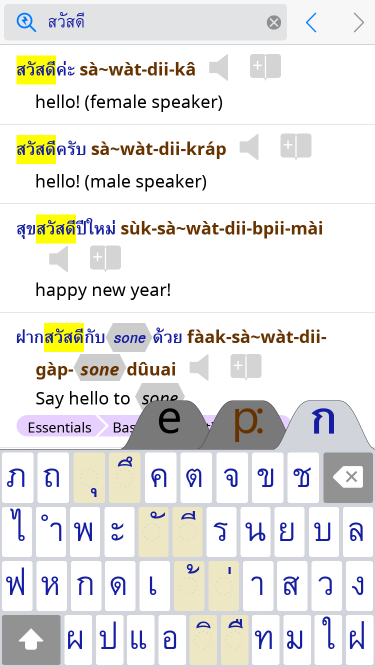
While searching for a Thai word using one one of our 12 Thai Sound
pronunciation guide
systems, the keyboard automatically adapts itself to your currenly
selected system, as shown here for the Paiboon+ system:
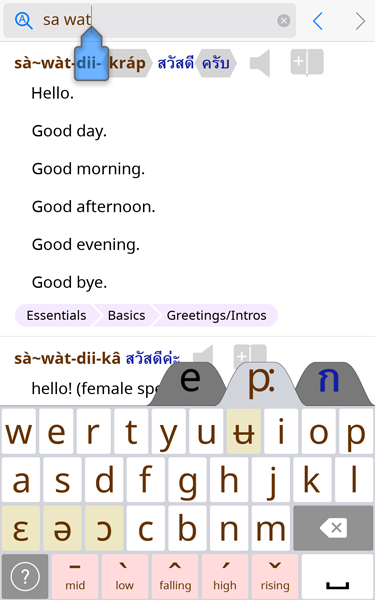
Return to Top
|
| |
|
Q:
|
Why don't I see the Paiboon Keyboard?
|
|
Q:
|
How do I activate the Paiboon Keyboard?
|
|
A:
|
NOTE: If you have not already, you should update to version 2.2
or later of the app. As of version 2.2, you no longer need to
activate the Paiboon keyboard in the Android Settings app.
To use the Paiboon keyboard, you just need to go to our app
Settings screen under Keyboards > "Thai Sound" and choose
"Paiboon Keyboard."
For more information, see our app Help screen under
"Using the app" > "On-Screen Keyboard."
Return to Top
|
| |
|
Q:
|
How do I switch keyboards?
|
|
A:
|
We have included complete documentation showing you how to activate
the Paiboon Keyboard, and how to switch between the Paiboon Keyboard
and other keyboards, in our application Help.
See our app Help screen under "Using the app" > "On-Screen
Keyboard."
Return to Top
|
| |
|
Q:
|
How can I easily switch from the Paiboon Keyboard to another keyboard?
|
|
A:
|
We have included complete documentation showing you how to activate
the Paiboon Keyboard, and how to switch between the Paiboon Keyboard
and other keyboards, in our application Help.
See our app Help screen under "Using the app" > "On-Screen
Keyboard."
Return to Top
|
| |
|
Q:
|
Can the dictionary automatically switch between English/Thai keyboards?
|
|
Q:
|
Can I make the keyboard follow which dictionary section I'm in?
|
|
A:
|
If you are using our provided Paiboon Keyboard, then yes! The Paiboon
Keyboard always automatically notices which section of the dictionary
you are in and adapts its keys appropriately. There is an English
keyboard, a Thai Script keyboard, and a custom keyboard for each
Thai Sound Pronunciation Guide system.
If you are using another keyboard, then unfortunately Android does
not give us app developers the necessary control over third-party
keyboards, so we cannot switch your keyboard automatically as you
switch between dictionary sections. This is a feature that many
Android users have been yelling at Google to include for more than
two years now, but it still has not surfaced.
Return to Top
|
| |
|
Q:
|
Can I use the Paiboon Keyboard to type Thai Script in other apps?
|
|
A:
|
No. The Paiboon Keyboard is private to our app.
Return to Top
|
| |
|
Q:
|
Why does the Paiboon Keyboard appear in other apps?
|
|
A:
|
This problem only occurs on Android. You should update to version 2.2
or later of the app. As of version 2.2, the Paiboon keyboard is
private to our app.
Return to Top
|
| |
|
Q:
|
Why does the Paiboon Keyboard get de-selected every time I reboot?
|
|
A:
|
This problem only occurs on Android. You should update to version 2.2
or later of the app. As of version 2.2, the Paiboon keyboard no
longer suffers from this Android bug related to keyboard failures with
apps that are installed on the SD card.
Return to Top
|
| |
Using the App Questions and Answers:
|
Q:
|
I just installed the app and it crashes immediately!
Why does the app (now) crash every time I run it?
|
|
Q:
|
Does the app work with Android 6 Marshmallow?
|
|
Q:
|
Does the app work with third-party Accessibility tools?
|
|
Q:
|
Does the app work with LastPass/Lazy Swipe/Greenify/...?
|
|
A:
|
The crash is now fixed!
All you need to do is update your dictionary app to the latest
version from the Google Play Store (version 2.2 or later).
There was a conflict between our app and some features of Android
version 6 and later. The conflict related to the Accessibility
feature of Android and so caused crashes with various
Android "Accessibility" apps/services include not only those
text-related services targeted at disabled users (screen readers,
alternate keyboards and other input methods, possibly including
non-English international keyboards) which read and process the text
shown by other apps, but Android Accessibility services are also used
by third-party (non-Google) apps and services that automatically fill
in passwords, form fields, and other text in other apps for you
(e.g. LastPass, Lazy Swipe, Greenify). Some launcher tools
(like Nova Launcher) also fall into this category and cause
conflict, though other launcher tools (like Launcher X) do not.
Some custom lock screen tools (like Next Lock Screen) also
fall into this category. Some anti-virus/security
packages (e.g. "Avast Mobile Security") fall into this category.
There was a workaround (to disable all these Accessibility features
in the Android Settings app) but it is no longer needed;
simply update our app since we have added a workaround for
this problem inside our app.
Return to Top
|
| |
|
Q:
|
Help! I just installed the app and all I can see is the Help screen.
|
|
Q:
|
How do I go from Help to the actual dictionary sections?
|
|
Q:
|
Where is the Menu button mentioned in the Help screens?
|
|
A:
|
Update the app and the problem will go away!
All you need to do is update your dictionary app to the latest
version from the Google Play Store (version 2.2 or later).
Those versions do not depend on the Menu button.
This is an old issue related to the fact that older versions
of our app (previous to version 2.2) required you to use the
menu button to get from Help to the main Search screen.
All Android devices have a Menu button, but the vendors seem
dedicated to hiding hit as well as they can! Each vendor hides it in a
different place. We used to have a Menu Button guide here,
but now you don't need the Menu Button. Just ugrade the app
and enjoy tons of new features!
Return to Top
|
| |
|
Q:
|
Why does the app always start on the Help screen?
|
|
Q:
|
Can I make the app start where I left off?
|
|
Q:
|
Should I exit the app using Back or Home?
|
|
A:
|
Note: If you are stuck in the app Help screens and cannot
get to the main dictionary section at all, you want to read the answer
to this question instead.
This is a common question which is answered in our Help pages under
"Using the Dictionary" ... "Exiting: Back vs. Home." Here is
an excerpt:
Some Android users are accustomed to using the Back button to "exit"
the app and get back to their device's Home screen. That works
because most apps (other than, say, the Browser app) do not have a
deep history, and so just a few touches of Back will bring you back to
the Home screen.
For our app, we recommend that you touch the Home button to get back
to your device's Home screen. This has several advantages: it brings
you Home instantly with one touch every time, and even better, when
you run the app again, you will be right back where you left off with
all your backward and forward history intact.
Some Android users choose to exit apps using Back because on many (but
not all) Android Versions, Back also has the side effect of causing
the app to no longer appear in the list of running apps (that you can
see by long-touching the Home button), meaning that the app is not
running and not taking up memory on the device. Various Android users
do this for reasons of conserving either battery life or memory. This
is a good strategy for apps which continue to actively use your
device's processor (and thus battery) while in the background.
However, our dictionary is not such an app. We are not aware of any
battery life or memory benefits from exiting our app using the Back
button (or explicitly killing it using a Task Killer app). Therefore,
we recommend use of the Home button to exit the app instead.
In particular,
- When our dictionary app is not in the foreground, it does not
consume any CPU (or battery) resources on your device because it
does not run. The only exceptions to this are:
- When you install the app and run it for the first time, the app
downloads dictionary entries and sounds from the internet. During
this download, our app attempts to continue the download even when in
the background (if Android permits), in order to allow you to use
other apps while you wait for the download to complete.
- When you use the Paiboon Keyboard from other apps on your device,
part of our app is running and thus consuming minute amounts of your
battery. However, this only applies to periods when the Paiboon
Keyboard itself is visible on the screen.
- If you use the Home button to leave the app and run another app,
our app will still be consuming memory on your device as it sits
quietly in the background. However, this does not mean it is
consuming battery life. The memory hardware on your device consumes
the same amount of battery regardless of whether there is 1MB of
memory used or 100MB of memory used. So you will not save battery
by actively clearing out your device's memory.
- If you use the Home button to leave the app and run another app,
and the new foreground app requires more memory than is currently
available on your device, then Android will automatically kill our app
to free up more memory. You do not need to worry about running out of
memory. You do not need to manually manage your device's memory. So
you don't need to explicitly kill our app via the Back button in order
to run other apps.
For all these reasons, we recommend that you exit our app using
the Home button.
Return to Top
|
| |
|
Q:
|
How does the app licensing work?
|
|
Q:
|
Why does the app say "Unable to verify your purchase of this app"?
|
|
Q:
|
Does your app use Google Play Licensing?
|
|
Q:
|
Does your app use Android Licensing Verification Library (LVL)?
|
|
Q:
|
Does your app have DRM?
|
|
A:
|
Make sure you are using the latest version of the app!
If you are having any trouble with licensing messages in versions of
the app prior to 2.2, all you need to do is update your dictionary app
to the latest version from the Google Play Store (version 2.2 or
later).
Like most paid apps on the Google Play Store, our app uses Google Play
Licensing (formerly known as Google Android Market Licensing, and also
known as Android Licensing Verification Library or LVL) in order to
verify your purchase. Previous versions of our app required you to
be connected to the internet for a few seconds once every 15 days
in order to keep the license check from firing. With app version
2.2 and above, this is no longer the case.
For more information about license checking and privacy,
see this section.
Return to Top
|
| |
|
Q:
|
How do I fix a "Download Failure" on the first app run?
|
|
A:
|
In some very rare cases, the first time you run our app after
installing it from the Google Play Store, the app will need to
download the dictionary definitions and sounds (normally, this
download occurs automatically inside the Google Play Store app, just
when you buy or update our app). And normally this download process
finishes without issue. In some vey rare cases you may see "Download
Failure" and be sent to this page for help.
If you see this message, please:
- Take a screen shot of your screen with the error message (to take
a screen shot, you can either use a friend's phone to photograph
your screen, or you can Google the make and model of your Android
device plus "screen shot" to learn how to take a screen shot on your
device).
- Email support@word-in-the-hand.com
with the screen shot. Let us know the make and model of your device.
Return to Top
|
| |
|
Q:
|
Why can I (sometimes) not paste on Samsung Galaxy Note?
|
|
A:
|
There seems to be some strange interaction between Samsung's Galaxy
Note and our app, possibly relating to their added support for the
S-Pen, that sometimes prevents the "Paste" dialog from coming up when
you long-press on the text entry box at the top of the Search
screen.
Fortunately, there are several workarounds:
- There is a gear-shaped key on the Samsung keyboard. If you long-press
that key, you get some options including Clipboard. From the
Clipboard option, you can paste (actually paste multiple items, if you
like).
- If there is some text already in the box and you tap that text, a
blue arrow will come up. One of our customers reports "Sometimes you
must dummy tap once elsewhere on the screen before tapping the text to
display the arrow." If you tap the blue arrow, you will get a Paste
option.
- We have also heard that the S-Pen menu might have a paste option but
this is unconfirmed.
Return to Top
|
| |
|
Q:
|
Does the app work on Android 11/12?
|
|
Q:
|
Why is the app/keyboard covered up by the Navigation Bar?
|
|
Q:
|
Why is the app/Search box cut off at the top?
|
|
A:
|
UPDATE: This issue is now completely fixed as of the ThaiDict
version 2.2.9 free update. Simply update your app in the Google Play
Store app to version 2.2.9 or later and ThaiDict will run full-screen
(no black bars) using Gesture or 3-Button Navigation, support Pixel 7
and Galaxy S22 and fixe keyboard-cut-off issues and split screen.
OLDER TEXT which applies to ThaiDict versions before 2.2.9:
Yes, our app does work on Android 11/12, but currently on some devices,
you have to do one of two workarounds in order to use our app. We
are working on a long-term fix so that you don't need any workaround,
but in the meantime follow one of the guides below to get
full access to ThaiDict features.
The Problem
Some users are experiencing a problem where the Android Navigation Bar
at the bottom of the screen (the bar with your Home and Back buttons)
is covering up the lower part of the app (which means the lower row of
the keyboard and the app tabbar options at the bottom are
inacessible). Example:

Some users with certain Pixel phones and Android 12 are seeing an additional
problem where the Search screen text entry box is partially cut off
at the top of the screen, as in:

These two problems are caused by related changes that Google made in
Android 11 and 12 that broke our app and many
other vendors' apps as well. Fortunately, there are immediate
workarounds.
Workaround For Bottom-Cut-Off (Android 11/12)
The short-term solution is to enable Gesture Navigation in your
Android Settings app.
In most versions of Android, this setting can be enabled at:
Settings > System > Gestures > System Navigation
In the "System Navigation" screen, choose "Gesture Navigation."
On Samsung devices, this setting can be enabled at:
Display > Navigation Bar
Choose "swipe gestures" instead of "buttons."
If your device's Settings app doesn't have either option above, Google
the make and model of your device plus the words "enable Gesture
Navigation" or "enable Swipe Gestures" to see how to do it.
Enabling Gesture Navigation will cause your Navigation Bar (the two or
three buttons along the bottom of the screen that go Home and Back) to
disappear. Instead of using the Navigation Bar, when you want to
return to the Home screen or go Back, you use two swipe gestures
explained and animated for you right there on the "Gesture
Navigation/Navigation Bar" screen.
This workaround will allow you to use the app fully. Gesture
Navigation might take a bit of getting used to, but many users
actually find they prefer Gesture Navigation after a little practice
because Gesture Navigation gives you more usable screen space in every
app on your device and makes it quite a bit faster to go home or
back.
Workaround for Top-Cut-Off (Pixel Android 12)
Certain users with Pixel phones and Android 12 may see the top of the
app cut off as well. You need to also apply the following workaround.
- First you need to enable Android's hidden "Developer Mode." In
the Settings app that comes with Android, go to
Settings > About Phone
scroll down to "Build number" and tap the word "Build Number" about 10
times until Android tells you that you are now a developer. This
means that you will now have an extra "Developer Options" in your
Settings app, which we will use next.
- Now, go to the new option
Settings > System > Advanced > Developer Options
and scroll way down to "DRAWING" where you will find "Display Cutout."
Tap "Display Cutout" and choose "Render apps below cutout area" (if
you have that option), or "Hide" otherwise. These options vary on
different Pixel phone models, and Google changes the list of options
in different Android software versions, so try them in the recommended
order and try other options if the recommended ones don't work, to see
which one solves the problem for you.
- If you ever want to undo the setting, go back into "Developer
Options" and set "Display Cutout" back to "Device default."
Here is a visual
guide showing the steps used to try out different settings of the
"Display cutout" option.
The original purpose of this option is to hide the notch or camera
cutout in different phones, so you might also find it useful for that
reason.
Permanent Solution
We are currently working on a new revision of the app (free upgrade)
that will allow you full access to the features of the app regardless
of which Navigation Bar or Gesture Navigation or cutout settings you
have made. This will come out along with a massive upgrade to our app
vocab (thousands of new free entries) that we have been working on for
years, including many entries suggested by you.
Return to Top
|
| |
|
Q:
|
Does the app work on the Google Pixel 7?
|
|
Q:
|
Does the app work with Android version 13?
|
|
Q:
|
Does the app support 64-bit?
|
|
A:
|
UPDATE: This issue is now completely fixed as of the ThaiDict
version 2.2.9 free update. Simply update your app in the Google Play
Store app to version 2.2.9 or later and ThaiDict will run full-screen
(no black bars) using Gesture or 3-Button Navigation, support Pixel 7
and Galaxy S22 and fixe keyboard-cut-off issues and split screen.
OLDER TEXT which applies to ThaiDict versions before 2.2.9:
Our app works fine with Android version 13, but there is a (frankly
head-scratching) compatibility issue that is specific to Google's
Pixel 7 series.
It looks like the Pixel 7s are the first—and
only—devices in the world that support 64-bit apps but do not
support 32-bit apps at all. This is actually the first time we ever
heard about such a device, as most device vendors want to keep
backwards compatibility support for 32-bit apps as well so that their
customers can use as many apps as possible.
Even more strangely, Google actually had 32 bit app support throughout
its Pixel 7 beta program but then Google disabled
32-bit apps via a software flag!
So that means it might be possible to convince Google to reverse this
unwise choice if enough device owners complain. It looks like Google
is testing the waters now so it would be a great time for you to
contact them to demand backwards compatibility.
Tell Google that one or more apps you use every day will not run on
your Pixel 7 because Pixel 7 only supports 64-bit apps and that you
want them to restore support for 32-bit apps.
These links should help you to contact Google quickly:
Google: Get help with your Pixel phone
Androidcentral: How to contact Google about issues with your Pixel phone
Google claims they disabled 32-bit support for "security and
performance," but we find this to be a hollow and unconvincing excuse:
they can support 64-bit apps with full security and performance, but
also support 32-bit apps without affecting the security and
performance of 64-bit apps (since it is the user's choice whether or
not to install 32-bit apps). We think it's much more likely that
Google wants to force app developers like us to submit new app
versions earlier than we normally would, which has the convenient (for
Google) side effect of forcing us to abandon support for our customers
with older devices (because Google's rules for submitting new apps
require us to use new build tools that are not compatible with old
customer devices), thus generating a big profit windfall for Google
and other device vendors like Samsung, since customers are forced to
buy new devices to keep their favorite apps working.
For those who are familiar and comfortable with rooting of Android
phones, there is a workaround that can flip that 32-bit support switch
back on immediately without needing to wait for Google: see here
and here
and here.
Back on the Paiboon/Word in the Hand side, we do have a plan to
eventually support 64-bit only devices, but no solid ETA at this time.
So eventually ThaiDict will work on Pixel 7 for sure, but we can't
give you a solid date for when at the moment. We have a hard deadline
to make a new release in May of 2023 (Google will remove our app from
the Play Store if we don't submit to their scheme by then). We hope
to finish our release and make it available before then as we have
been working very hard on adding thousands of new words and
definitions requested by customers, as well as a handful of new
features such as 64-bit only support, and we really want to get those
out to customers. We are just limited by our small development team
and the ever-shrinking market for Thai learning products. We have had
to take various day jobs to make a living, but this product is our
passion and we definitely want to keep updating it. Just want to set
your expectations properly about the timing.
Hopefully enough customers can contact Google now to convince them to
re-enable the support for 32-bit apps. It's quite an odd move by
Google.
Return to Top
|
| |
|
Q:
|
What Android permissions does the app request?
|
|
Q:
|
What private info does the app collect?
|
|
A:
|
We care a lot about privacy and we ourselves do not like apps that
request unnecessary permissions, so we have done a lot of work to
reduce our set of requested permissions to the minimum possible.
For complete information, see our Privacy Policy
here.
Return to Top
|
| |
Reference Questions and Answers:
|
Q:
|
What pronunciation guide systems does the dictionary support?
|
|
A:
|
In addition to our signature Paiboon+ pronunciation guide system, the
same system used in all Thai learning materials from Paiboon Publishing, this
software lets you choose from 11 other pronunciation guide systems:

With a single tap in our Settings screen, all pronunciation guides
transform into your chosen system, including those in our comprehensive, interactive guide to
Thai. You can even look up Thai words by sound
using your chosen system.
You can find all the details on each system, including where it comes
from and exactly what symbols it uses, in our comprehensive app Help
screens under "Pronunciation Guides." If you have a specific question
about a supported system you can
contact us.
Return to Top
|
| |
|
Q:
|
What are the parts of speech / symbols / abbreviations used in the dictionary?
|
|
A:
|
All of these details are documented in our app's comprehensive
Help screens under "Speaking and Listening." Pay particular attention
to the sections called "Register" and "Parts of Speech."
Return to Top
|
| |
|
Q:
|
What's up with that app icon?
|
|
A:
|
To learn the story of our dictionary/phrasebook app icons, see
this page.
Return to Top
|
| |
Companion Material Questions and Answers:
|
Q:
|
What other Thai learning materials are available?
|
|
Q:
|
What else does Paiboon Publishing produce?
|
|
Q:
|
Which Thai books work best with the dictionary?
|
|
A:
|
 The
Thai <> English Dictionary was developed by
Paiboon Publishing
and Word in the Hand™ Inc. The
Thai <> English Dictionary was developed by
Paiboon Publishing
and Word in the Hand™ Inc.
Paiboon
Publishing is the world's leading producer of South-East Asian
language learning materials, including the famous Thai for Beginners and the Thai for Beginners App. There's even an audio
companion to the learning books, a guide to pronunciation, and a multi-volume series on how to
Speak Like a Thai. Paiboon Publishing also
created leading offerings for the Burmese, Vietnamese, Lao, and
Cambodian languages.
Paiboon Publishing has recently expanded into the Chinese language
learning space with disruptive apps full of industry-first
innovations, such as the
Talking Chinese–English–Chinese Phrasebook and
Survival Chinese for English Speakers.
The Thai <> English Dictionary and Paiboon's other
Thai
language materials, both printed and electronic, work perfectly
together because they share a common teaching method and a common set
of pronunciation guide systems (for more detail on pronunciation guide
systems, see
Search-by-Sound™).
If you have a mobile device, don't miss out on this indispensable
Thai learning app from Paiboon Publishing:
 |
|
Thai for Beginners App
Thai for Beginners App
|
by Benjawan Poomsan Becker
and Dominique Mayrand
Buy Now for iPhone/iPad/iPod Touch from the Apple iTunes App Store
Buy Now for Android from the Google Play Store
Learn Thai from Thai language expert Benjawan Becker
Version 2.0 features include: Increase text size: small, medium,
large; autoplay an entire lesson; show or hide English text; added
English voice, which can be turned on or off. Teaches speaking,
listening and reading Thai with a native speaker and over 3,000
clearly recorded words and phrases. Follows the format of the best
selling Thai for Beginners book. Provides examples of the five tones
in Thai. Test your knowledge with build in exercises. Detailed Help
section within the app. After downloading it works without an Internet
connection: no data charges.
For more info on Paiboon Publishing products, see www.paiboonpublishing.com. Here are just some of
the titles:
Return to Top
|
| |
|